“Plan my dinners Mon–Fri from my favorites, nothing over 45 minutes.”
It looks through the recipes you’ve favorited, picks five that fit, and puts them straight into your Bite meal plan.
Connect Bite to Claude or ChatGPT and talk through dinner the way you would with a friend who knows every recipe you’ve ever saved. Plan the week, build the shopping list, save that recipe you just found.
Part of Bite Pro. Your recipes stay private.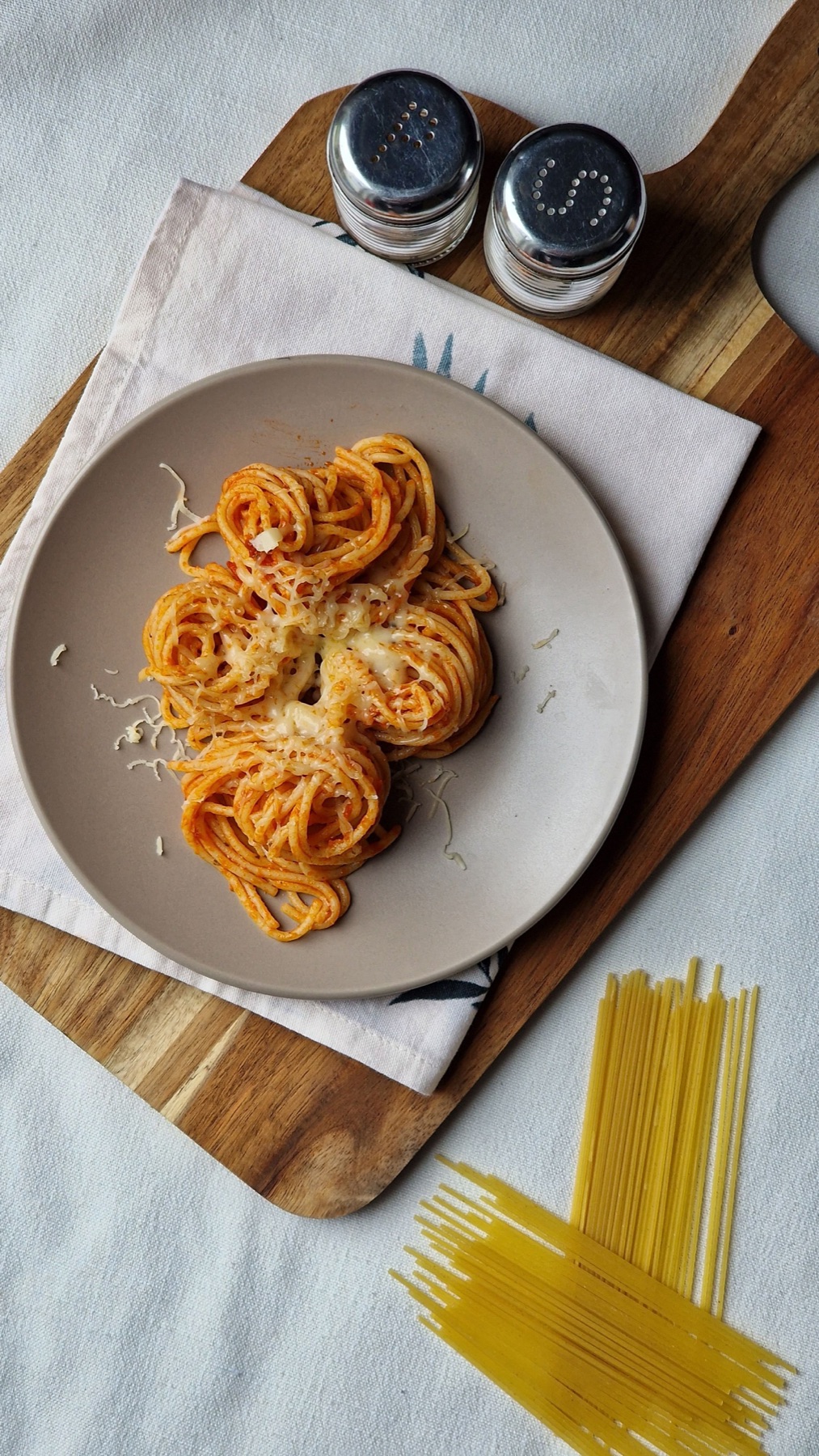 MonSpicy vodka pasta30 min
 TueSmash burgers25 min
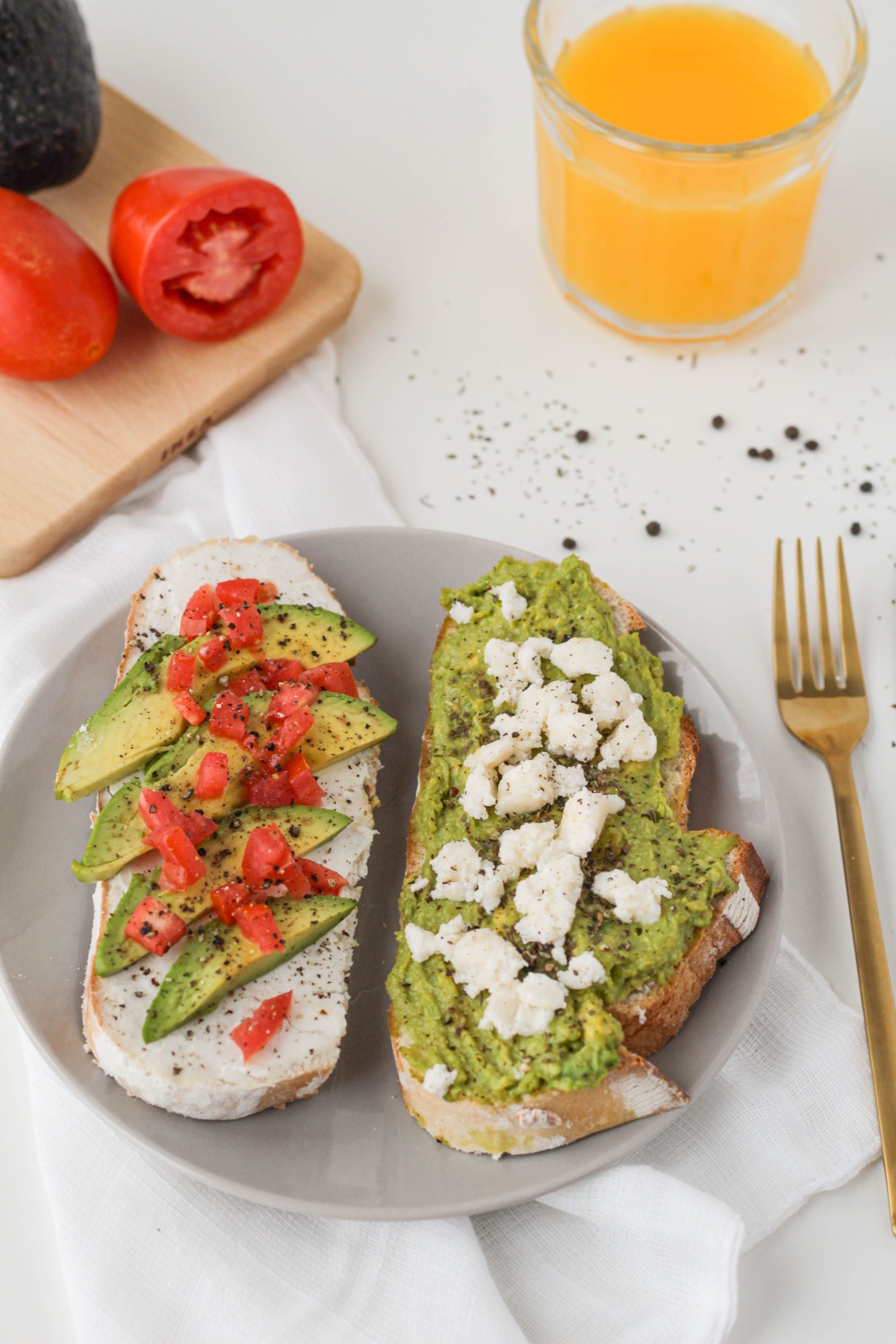 WedAvocado toast & eggs15 min
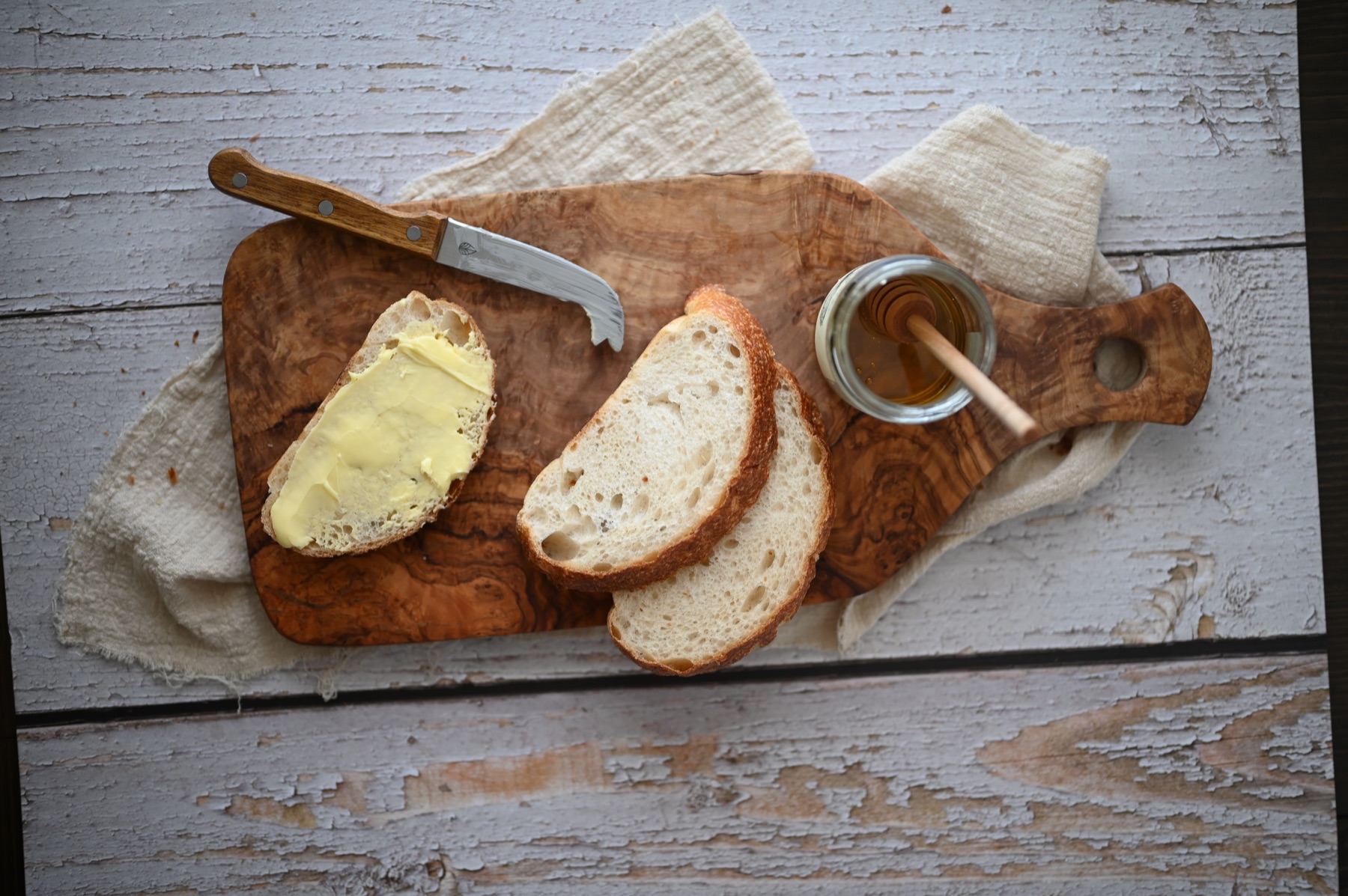 ThuSoup & fresh bread40 min
 FriBreakfast-for-dinner pancakes35 min
No commands to learn. Your assistant works with your own Bite library, so the answers start with recipes you already love.
“Plan my dinners Mon–Fri from my favorites, nothing over 45 minutes.”
It looks through the recipes you’ve favorited, picks five that fit, and puts them straight into your Bite meal plan.
“What can I make with chicken, rice and spinach from my saved recipes?”
It searches your own library first, so the answer is a recipe you already loved enough to save.
“Save this recipe to Bite.”
Worked out a recipe together in chat? It lands in your Bite library, private to you.
“Import this recipe: https://…”
Paste a link from a food blog, Instagram or TikTok and Bite turns it into a clean recipe you can cook from.
“Make me a shopping list for this week.”
Bite builds the list from your meal plan, ready to take to Instacart or your favorite grocery app.
You’ll need a Bite account and the Bite address below. Menu names can change a little as Claude and ChatGPT update their apps, and connector options depend on your Claude or ChatGPT plan.
https://mcp.biterecipes.co/mcpAnyone can connect, and your assistant will use Bite whenever you have an active Bite Pro subscription. New to Bite? Download the app, save a few favorites, then come back here.
You choose to connect, and you can disconnect at any time. Here’s exactly what that connection reaches.
What you share in a chat is handled by Claude or ChatGPT under their own terms and privacy policies. Read more in our Privacy Policy and Terms of Service.
Sign in to Bite on the web and open Settings → Connected apps. Disconnecting works right away, and your assistant can’t reach Bite again until you reconnect. You can also remove Bite from Claude or ChatGPT’s own connector settings. If you delete your Bite account, every connection goes with it.
Questions or something not working? Email us at support@biterecipes.co.